# Welcome to SalesMonk
### What SalesMonk Is
SalesMonk is an AI-powered Go-To-Market (GTM) platform built to help B2B companies consistently generate qualified sales meetings by unifying inbound intent, outbound execution, and automation into a single system.
Most GTM stacks today are fragmented:
* One tool tracks website visitors
* Another runs outbound campaigns
* Another logs CRM data
* Another handles analytics
SalesMonk replaces this fragmentation with a connected GTM layer that sits across inbound and outbound, allowing teams to:
* Identify buying intent early
* Act on it automatically
* Measure outcomes, not activity
***
### Who It Is Built For
SalesMonk is designed primarily for:
* B2B SaaS companies
* Growth-stage and mid-market teams
* Revenue, sales, and demand generation leaders
It is especially valuable for teams that:
* Have meaningful inbound traffic but low conversion rates
* Run outbound campaigns without real-time intent context
* Want inbound and outbound to reinforce each other
* Care more about meetings and pipeline than vanity metrics
SalesMonk is not built as a generic CRM or email tool.\
It is built as a GTM execution and intelligence layer.
### Core Problem It Solves
Most companies struggle with the same GTM problems:
1. Inbound intent is underutilized\
Visitors browse pricing pages, product pages, or docs — but sales never acts in time.
2. Outbound is disconnected from intent\
Outreach is cold, generic, and poorly timed.
3. Signals are scattered\
Website behavior, CRM data, and outbound engagement live in silos.
4. Teams optimize the wrong metrics\
Emails sent, visitors tracked, or clicks — instead of meetings booked.
SalesMonk solves this by:
* Making intent visible
* Making action automatic
* Making meetings the primary KPI
***
### Inbound + Outbound GTM Philosophy
SalesMonk is built on a simple philosophy:
Inbound captures intent.\
Outbound amplifies intent.\
Automation connects the two.
Instead of treating inbound and outbound as separate motions, SalesMonk treats them as one continuous GTM system.
For example:
* A pricing page visitor is not just an inbound lead
* They are an outbound opportunity — immediately
This philosophy drives the entire product architecture.
***
### What “Qualified Meetings” Mean in SalesMonk
A qualified meeting in SalesMonk is not just a calendar event.
It is a meeting that:
* Is associated with a known account
* Is backed by behavioral or intent signals
* Is logged through inbound or outbound flows
* Can be tied to pipeline and revenue
SalesMonk is optimized around meeting quality, not meeting volume.
***
# What we do
## Video overview
Got 3 minutes? Check out a video overview of our product:
{% embed url="" %}
# Overview
**What this section covers**\
This section defines the core objects used throughout SalesMonk.These concepts form the foundation of how inbound intent, outbound execution, and automation work together across the platform.It includes:
* Leads
* Accounts
* Activities
* Segments
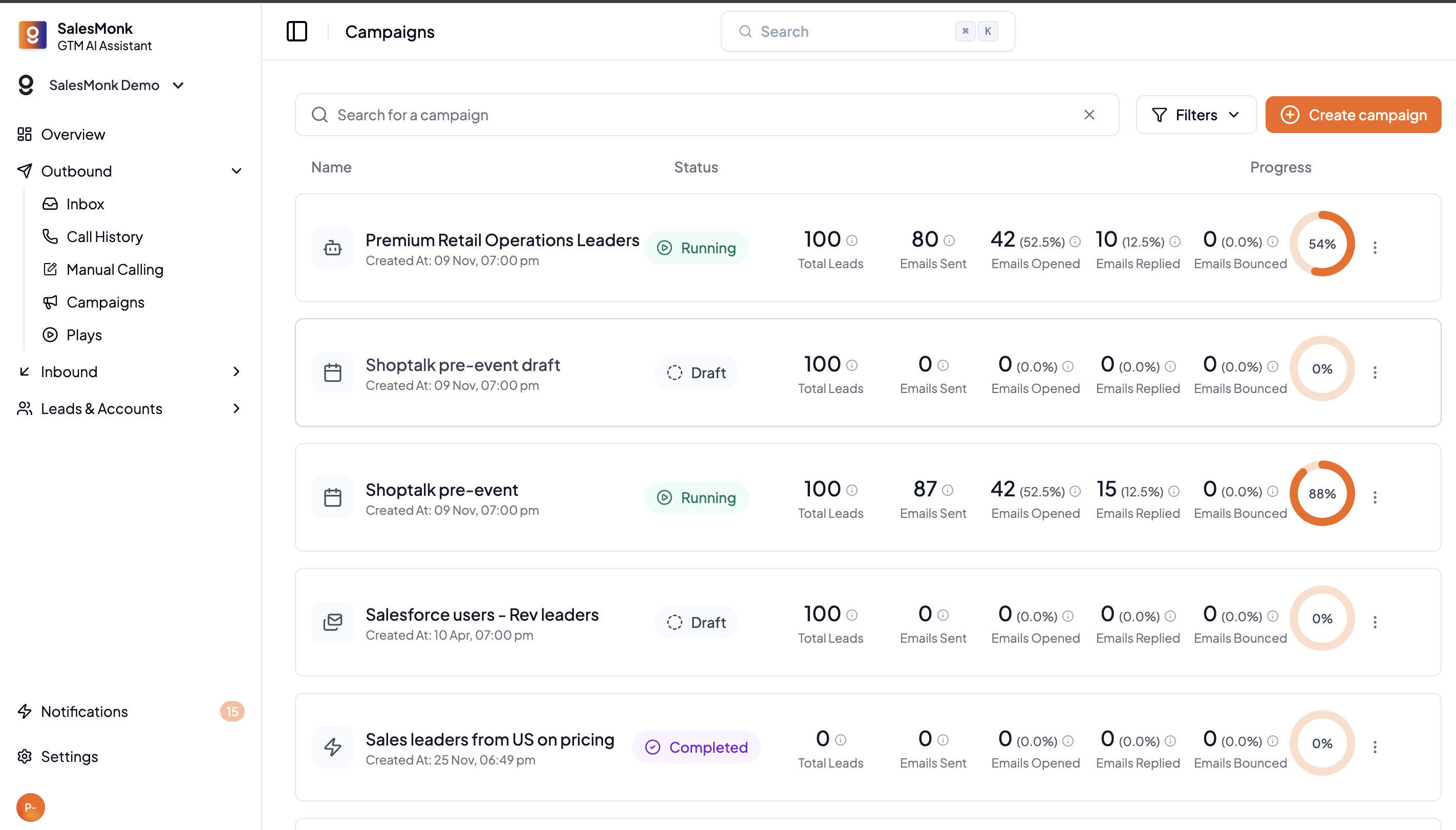
* Plays
* Signals
Each concept is explained in its own page.
# Leads
A Lead represents an individual person.
Leads can enter SalesMonk from multiple sources:
* Website visits (identified or anonymous)
* Chat conversations
* Form submissions
* Outbound prospecting
* CRM or CSV imports
Each lead maintains:
* Identity data (email, name, role when available)
* Activity history across all channels
* Campaign and sequence participation
* Conversation context (chat, email, calls)
Leads are always viewed in context of their account.
# Accounts
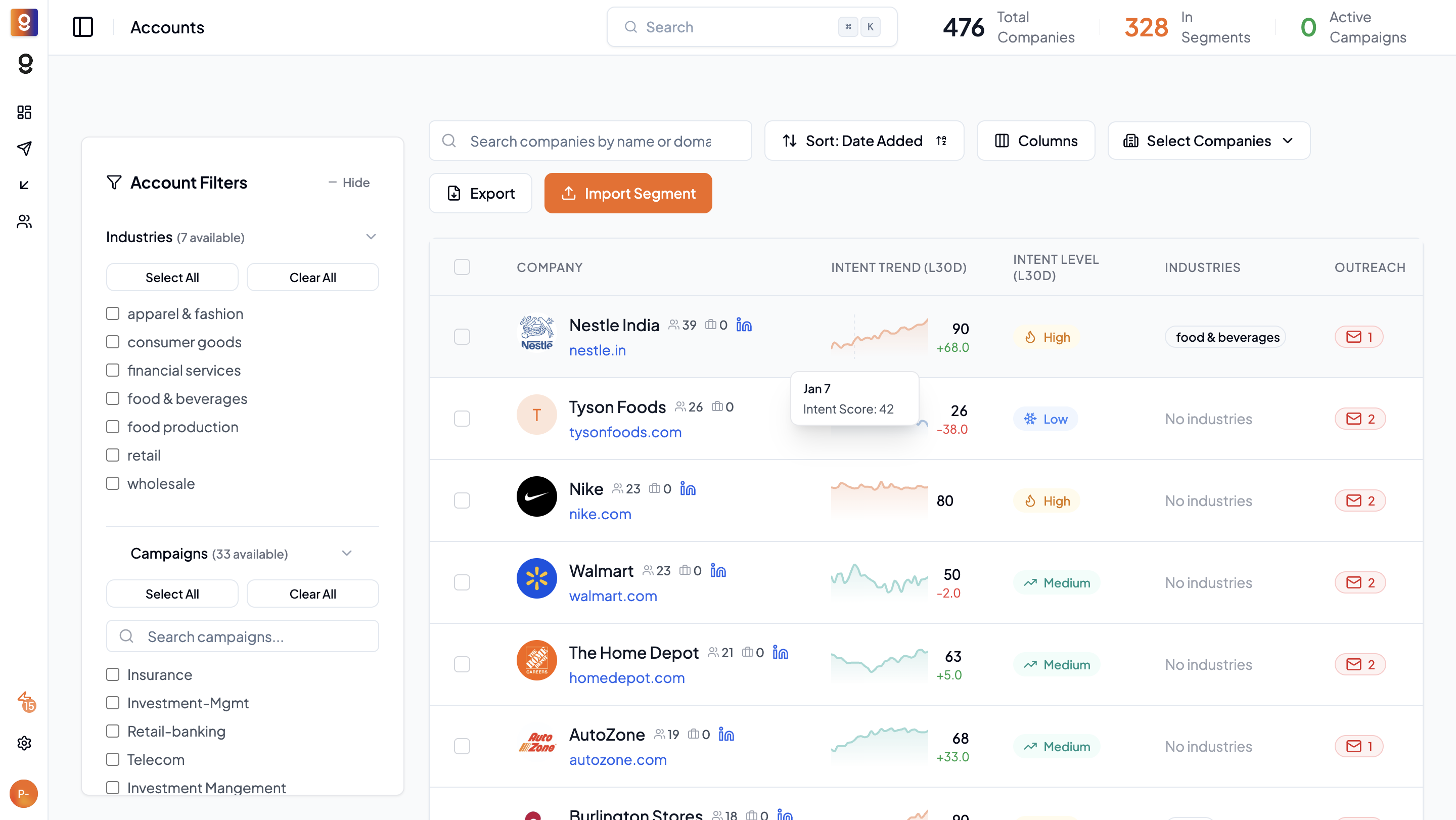
An Account represents a company.
Accounts are foundational in SalesMonk because:
* Most buying decisions are company-driven
* Intent is often visible before a specific person is known
Accounts can be created from:
* Website visitor identification
* CRM sync
* Outbound imports
* AI Search results
Each account aggregates:
* All associated leads
* Website activity across visitors
* Signals and scoring
* Inbound and outbound engagement
# Activities
An Activity is the smallest unit of interaction tracked in the system.
Examples include:
* A visitor viewing a pricing page
* An email being sent or replied to
* A LinkedIn message
* A phone call
* A meeting being booked
* A chat message
Activities create a chronological timeline that allows teams to understand:
* What happened
* When it happened
* Across which channel
# Segments
Segments are logical groupings of leads or accounts.
Segments can be:
* Active (auto-updating as data changes)
* Static (fixed lists)
Segments can use conditions such as:
* Website behavior
* Firmographic data
* CRM fields
* Signals
* Campaign state
Segments are central to:
* Prioritization
* Automation
* Personalization
* Reporting
# Plays
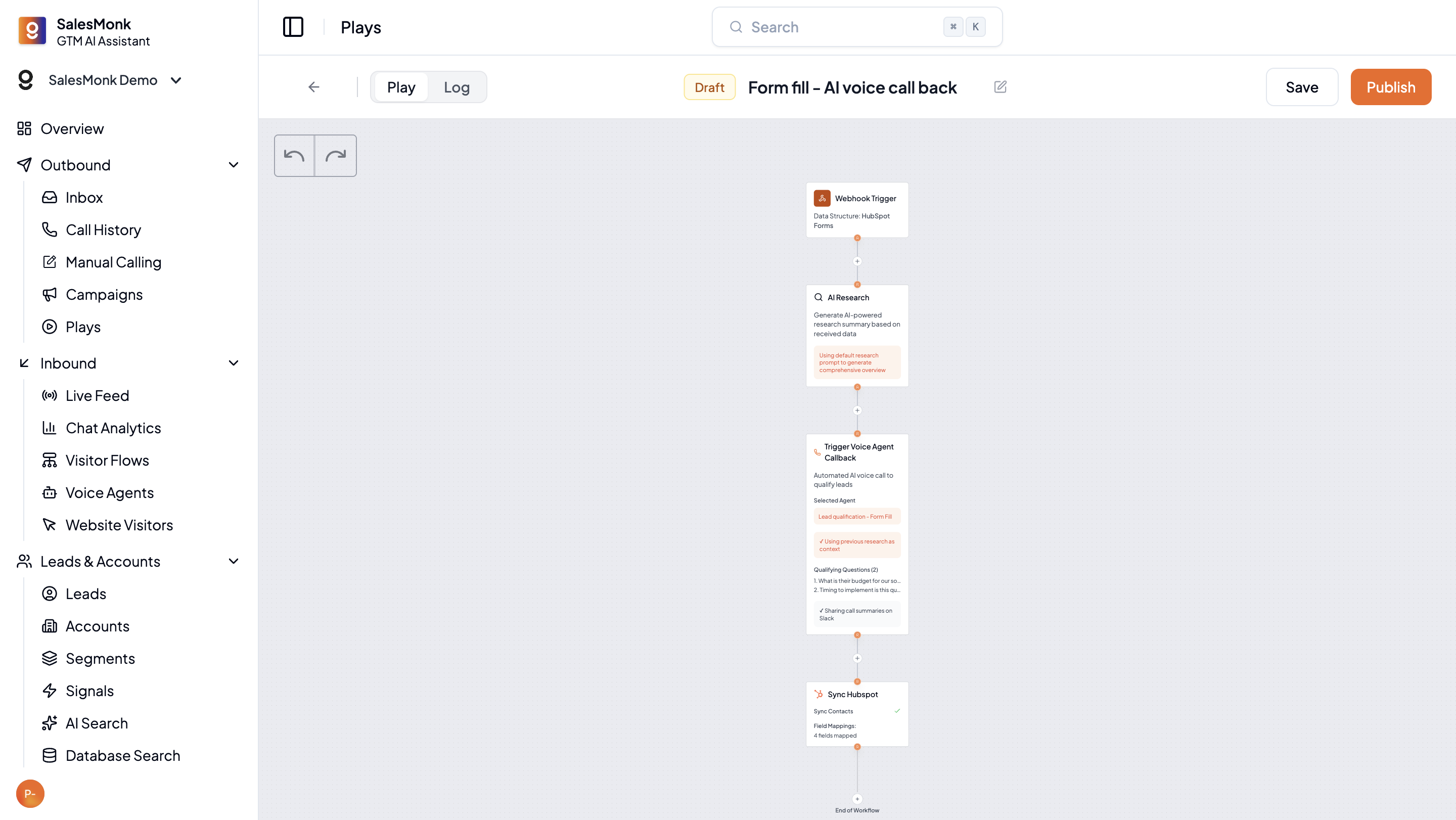
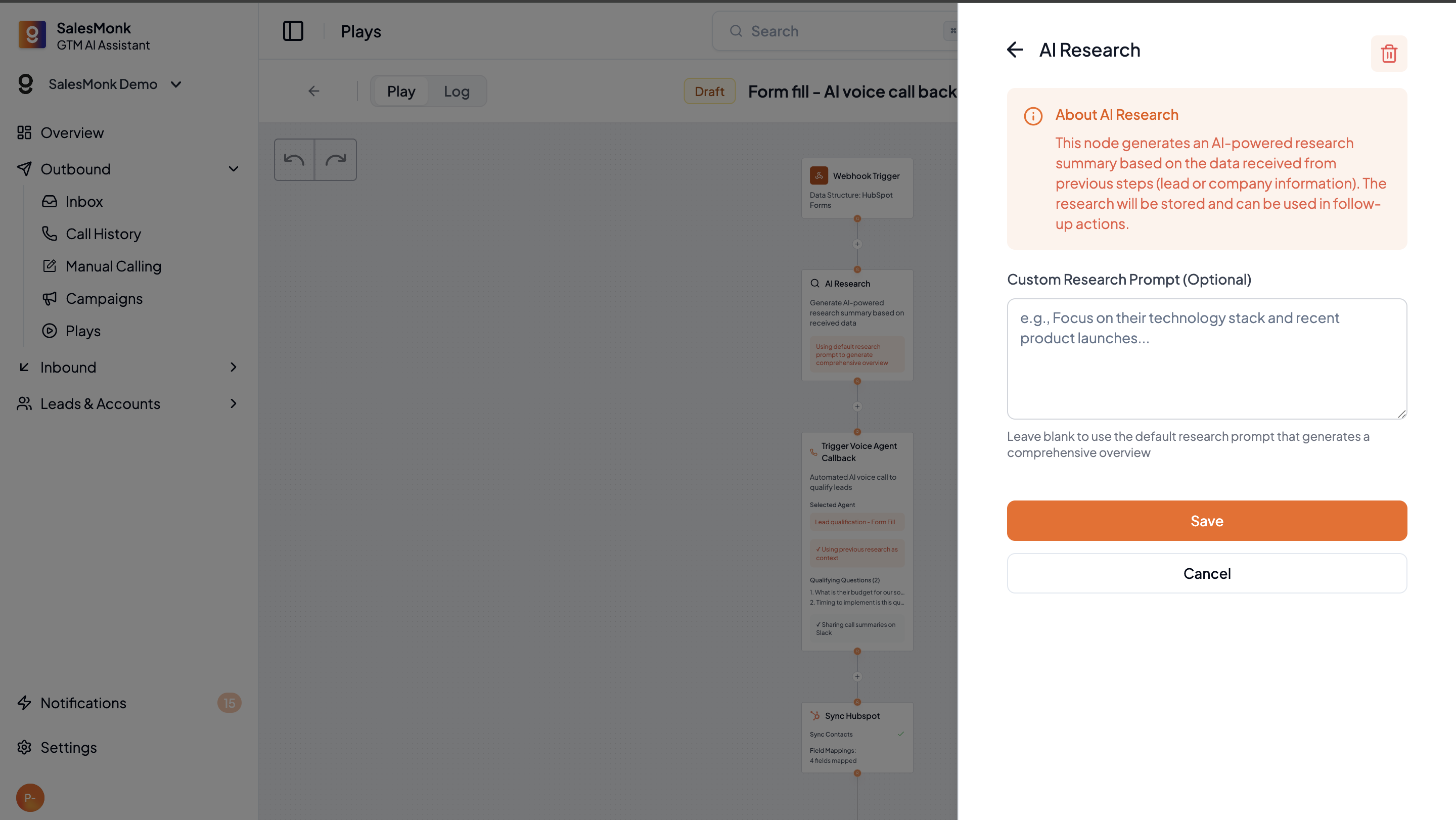
A Play is an automation that defines what action should occur when certain conditions are met.
Plays are typically:
* Triggered by segment membership
* Executed automatically
Examples:
* Add high-intent accounts to a campaign
* Prospect decision-makers from visiting companies
* Trigger a voice callback after form fill
* Sync data to external tools
Plays are how SalesMonk operationalizes intent.
# Signals
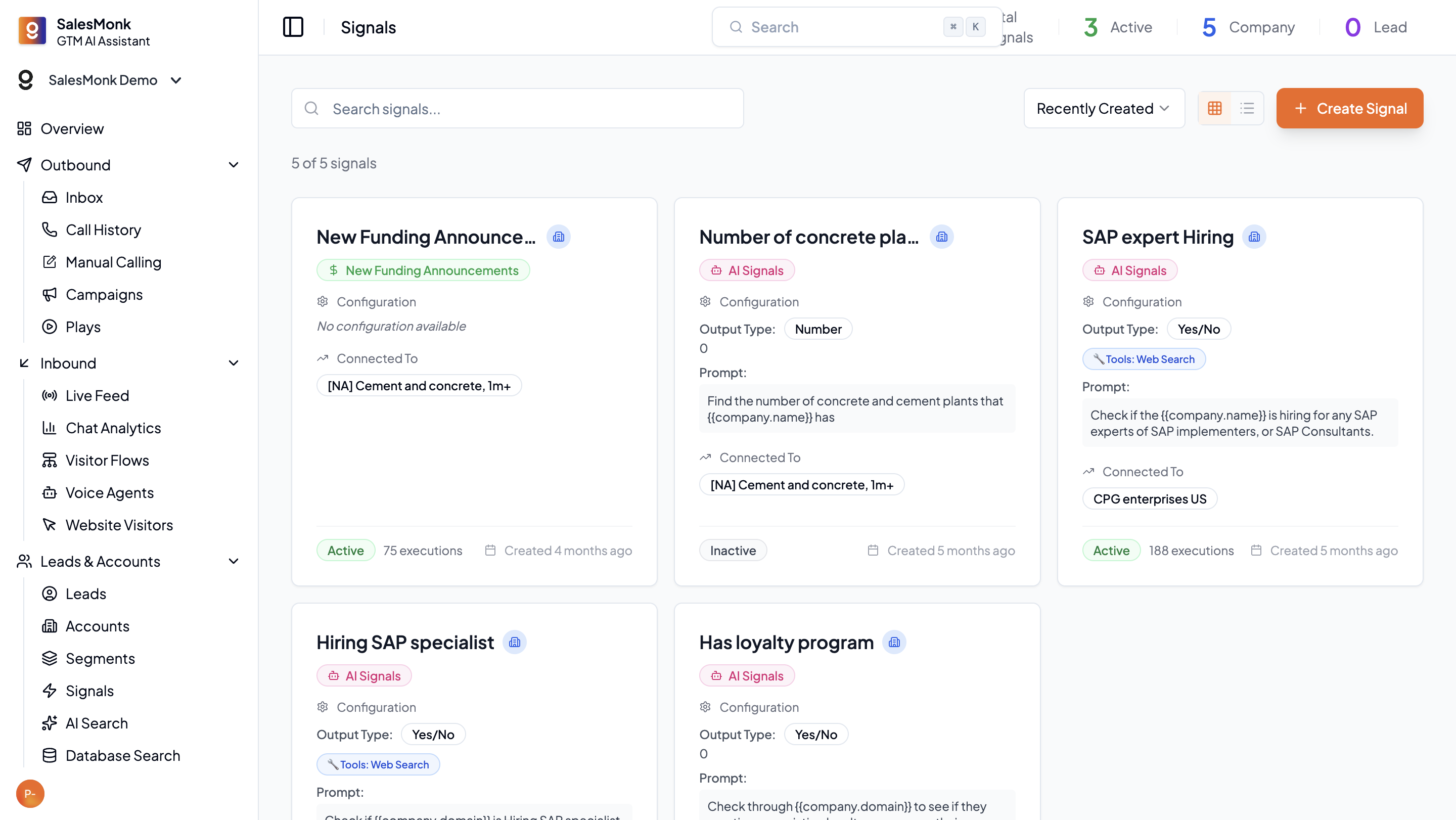
Signals are explicit indicators of relevance or buying intent,\
They also feed segmentation, scoring, and automation.
SalesMonk supports:
* Built-in signals (traffic, hiring, funding, etc.)
* Custom AI signals generated from public web data
Signals can be:
* Boolean (true/false)
* Numeric (counts, scores)
* Textual (research-based)
\
How These Concepts Connect at a system level:
* Accounts contain Leads
* Leads and Accounts generate Activities
* Signals enrich Accounts
* Segments group Leads or Accounts
* Plays act on Segments
* Campaigns execute outreach
* Meetings close the GTM loop
This shared model allows inbound and outbound to function as one system.
# Visitor Identification
De-anonymization Waterfall
#### 1. First-Party Identification
This includes:
* Chat-provided emails
* Form submissions
* CRM cookies
This level provides highest confidence.
***
#### 2. Contact-Level De-anonymization (Primarily US)
SalesMonk integrates with contact-level providers that:
* Match visitors using shared identity networks
* Identify exact individuals when possible
This allows SalesMonk to say:
“This specific person is on your site right now.”
***
#### 3. IP-Based Company Identification (Global)
For visitors where individual identity is unavailable:
* IP intelligence is used
* Company-level identification is provided
* Confidence levels are shown
This enables account-based inbound actions even without a named lead.
***
#### Frequently Asked Question
**Can we identify anonymous website visitors at the company level?**
Yes. SalesMonk identifies anonymous website visitors at the company level globally, and at the individual contact level primarily in the US.
***
**What technical setup is required?**
Setup requires a lightweight JavaScript pixel installed on the website.
No server-side integration is required.
Once installed, the pixel starts collecting visitor signals and matching them against identity networks.
***
**Can identification be segmented by specific landing pages?**
Yes. Identification can be segmented by specific landing pages.
This allows teams to understand which pages are attracting which companies and evaluate campaign or partner performance.
***
**Can identification be segmented using UTM parameters?**
Yes. SalesMonk supports segmentation using UTM parameters.
This makes it possible to isolate and track traffic coming from partner-driven campaigns, such as vendor campaigns run through Channext.
***
**Is identification limited to company-level data, or are named contacts available?**
The depth of identification depends on geography.
* **Global**: Company-level identification including company name, domain, and firmographic attributes.
* **US**: Named contacts may be available where identity signals allow.
***
**If named contacts are available, is the data deterministic or probabilistic?**
It depends on the data source.
* First-party data captured directly through SalesMonk is **deterministic**.
* Data sourced from external providers is **probabilistic**.
No provider can guarantee 100% accuracy for deanonymization.
SalesMonk provides transparent confidence scores, allowing teams to evaluate reliability before taking action.
Confidence scores are derived by cross-verifying signals across multiple data providers, which improves accuracy compared to relying on a single provider.
***
**What percentage of total website visitors can typically be identified at the company level?**
Identification rates depend on geography and traffic source.
* **US traffic**: Contact-level identification is possible via shared identity networks.
* **EU and global traffic**: Identification is typically done at the company level using IP intelligence with confidence scoring.
Rates vary depending on visitor intent and traffic quality.
***
**How do identification rates vary by geography (US vs EU)?**
* **US**: Both company-level and contact-level identification are possible.
* **EU**: Identification is generally limited to company-level data due to GDPR restrictions on personal data.
***
**How do identification rates vary by traffic source?**
Traffic source has a significant impact on identification rates.
* **Direct and referral traffic** usually have higher identification rates.
* **Paid social traffic** tends to have lower identification rates due to platform privacy restrictions.
***
**Are SMB companies identifiable at similar rates as enterprise companies?**
At the **company level**, SMB identification rates are generally comparable to enterprise companies.
At the **contact level**, identification tends to skew more toward **larger organizations**, since more public identity signals are typically available.
***
**How is GDPR compliance handled for EU traffic?**
For visitors from the **European Union**, SalesMonk only uses **IP-level signals to determine company-level information.**
No personal data is stored or processed for **individual-level identification**, ensuring compliance with GDPR requirements.
# Inbound AI Widget
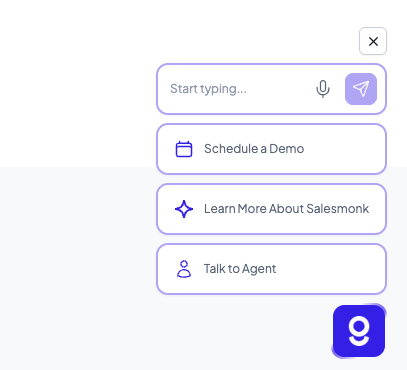
The inbound widget enables:
* AI chat conversations
* Human sales handoff
* Meeting booking
* Voice-based interactions (optional)
The widget:
* Can be customized per page or segment
* Can be disabled while tracking continues
* Acts as both an engagement and qualification layer
# Live Visitor Feed
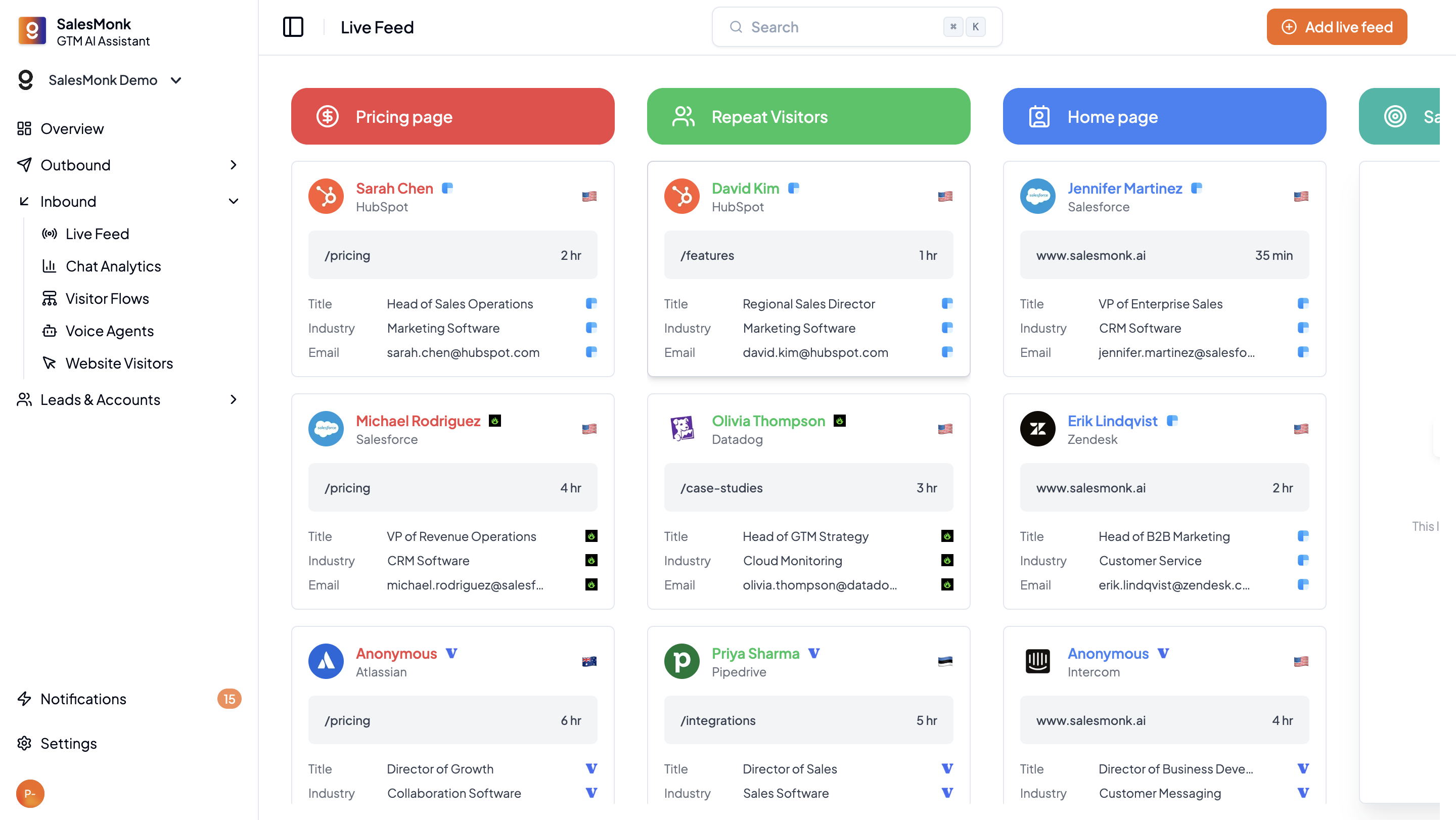
The live feed shows:
* Active visitors
* Identified accounts
* Matched segments
* Engagement context
Sales teams can:
* Monitor high-intent activity
* Jump into conversations
* Block or mute noisy traffics.
# Visitor Flows (On-Site Messaging)
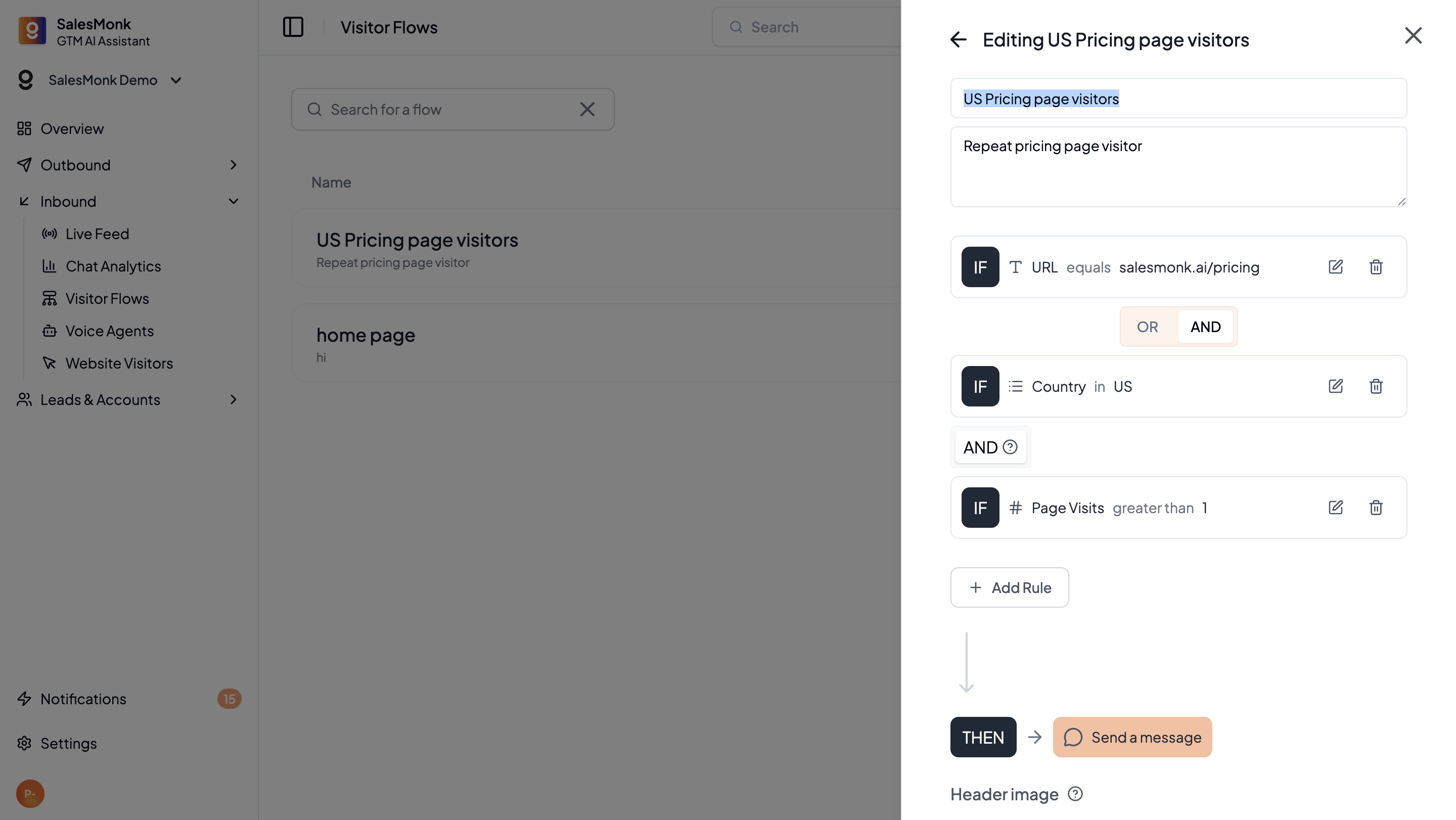
Visitor flows determine:
* Which message is shown
* To which visitor
* Under what conditions
Flows are:
* Segment-driven
* Prioritized
* Customizable by page and context
This enables personalized inbound experiences at scale.
# Inbound Analytics
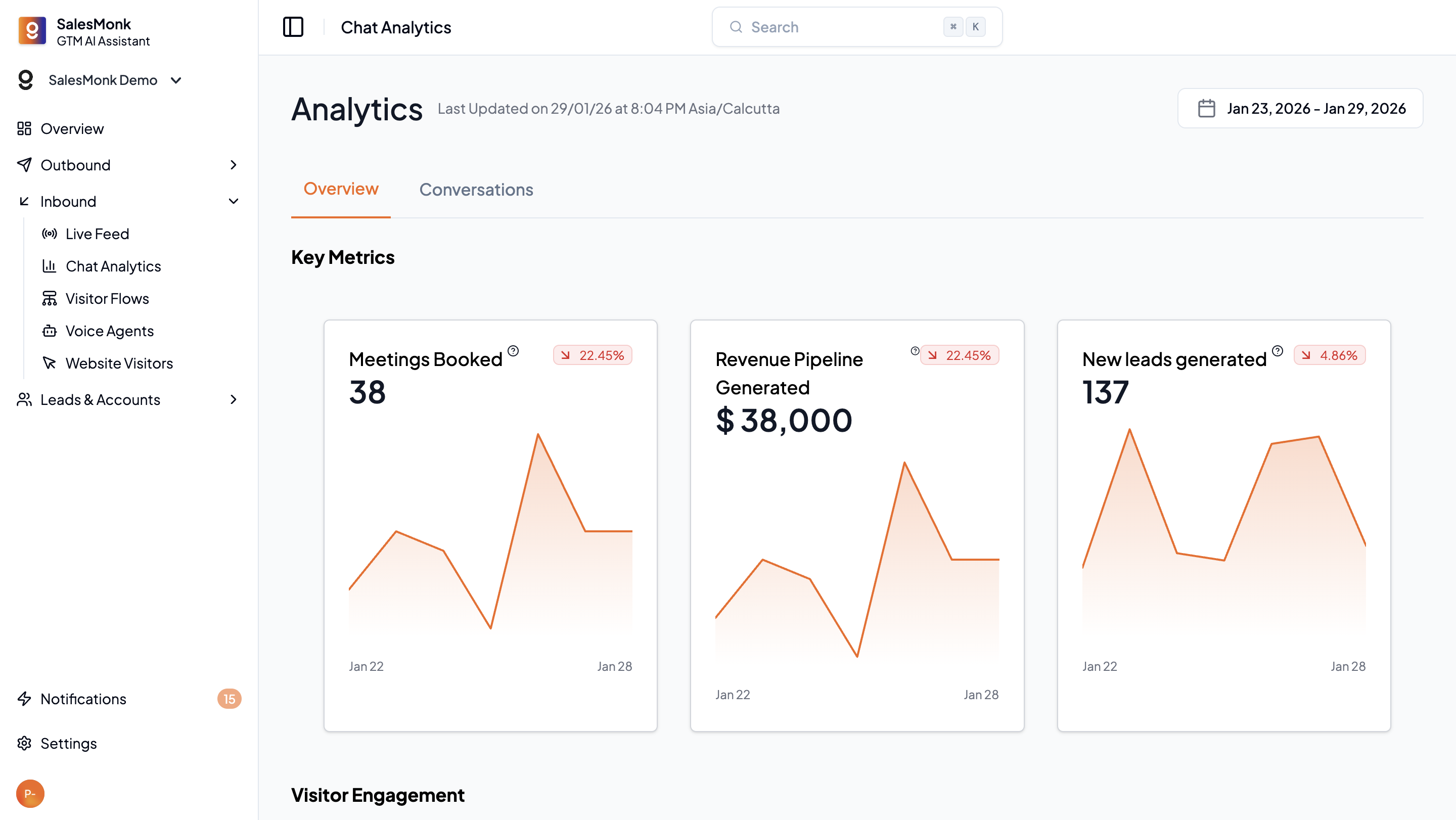
Inbound analytics focus on outcomes:
* Meetings booked
* Pipeline generated
* Bot vs human conversations
* Meetings per 1,000 visitors
* Performance by flow and segment
Metrics are normalized to account for traffic fluctuations.
# Opening Messages
### Overview
Opening Messages allow you to create and display a personalized welcome message to website visitors.
These messages help you:
* Greet visitors proactively
* Guide them to relevant actions
* Increase engagement and conversions
This feature enables targeted and customizable visitor interactions.
***
### What You Can Do with Opening Messages
With Opening Messages, you can:
* Create a personalized welcome message
* Target specific visitor segments
* Customize the design and content
* Add actionable response options
* Control when and where the message appears
***
### How to Access Opening Messages
1. Log in to SalesMonk.
2. Navigate to **Inbound** in the left sidebar.
3. Click on **Opening Messages**.
4. Click **New Opening Message** to begin setup.
***
### Setting Up an Opening Message
{% embed url="" %}
#### Step 1: Add Basic Info
Add a name and description for your Opening Message.
***
#### Step 2: Configure Targeting Rules
You can control who sees the message based on:
* Visitor segment
* Page URL
* Company attributes
* Behavior or engagement rules
This ensures the message is relevant and contextual.
***
#### Step 3: Define the Message Content
You can:
* Add a welcome headline
* Write a short description
* Include actionable buttons or quick replies
**Example**
> Hi there 👋 How can we help you today?
***
#### Step 4: Publish the Message
Once the Opening Message is saved:
1. Click on **Settings**.
2. Select **Widget Designer** from the side navigation bar.
3. Enable **Opening Messages**.
4. Click **Publish**.
The message will now be displayed to eligible visitors.
***
### Preview
# Outbound Overview
The outbound suite in SalesMonk is designed to operationalize intent, not generate random outreach.
Traditional outbound tools focus on:
* Volume of emails sent
* Sequence complexity
* Template management
SalesMonk instead focuses on:
* Who to reach
* When to reach them
* Why they are relevant right now
Outbound in SalesMonk is tightly integrated with inbound signals, account intelligence, and automation.
# Prospecting Methods
SalesMonk supports multiple prospecting approaches, unified under one system.
#### 1. Database Search
SalesMonk includes a traditional database search for:
* Titles
* Companies
* Locations
* Firmographic filters
This is useful for:
* Cold outbound
* Market mapping
* Initial list building
***
#### 2. AI Search (Public Web Intelligence)
AI Search allows users to query the public web directly using natural language.
Examples:
* “Find companies that recently raised Series A in fintech”
* “Find CROs who posted about Dreamforce”
For each result:
* Source citations are provided
* Confidence levels are shown
* Data can be filtered before import
This avoids blind reliance on static databases.
***
#### 3. Imports & CRM Sync
Leads and accounts can also enter via:
* CSV imports
* CRM integrations (HubSpot, Salesforce)
* Inbound widget capture
All sources converge into a single lead/account system.
# Enrichment & Verification
Before outreach, SalesMonk can:
* Enrich email addresses
* Verify deliverability
* Fetch phone numbers
* Score LinkedIn activity
This reduces:
* Bounce rates
* Spam risk
* Wasted sales effort
# Campaign Creation
SalesMonk supports multiple campaign types:
#### ICP-Based Campaigns
Campaigns built from:
* Filters
* Segments
* Account criteria
#### CSV-Based Campaigns
Direct uploads for:
* Events
* Target lists
* Custom datasets
#### Trigger-Based Campaigns
Campaigns launched automatically via:
* Plays
* Segment entry
* Inbound actions
***
### Sequence Design
Sequences can include:
* AI-generated emails
* Custom templates
* LinkedIn steps
* Calls (human or AI-assisted)
AI personalization can use:
* Company context
* Role context
* Website behavior
* Signals and intent
Spin-tax is applied to avoid pattern repetition and improve deliverability.
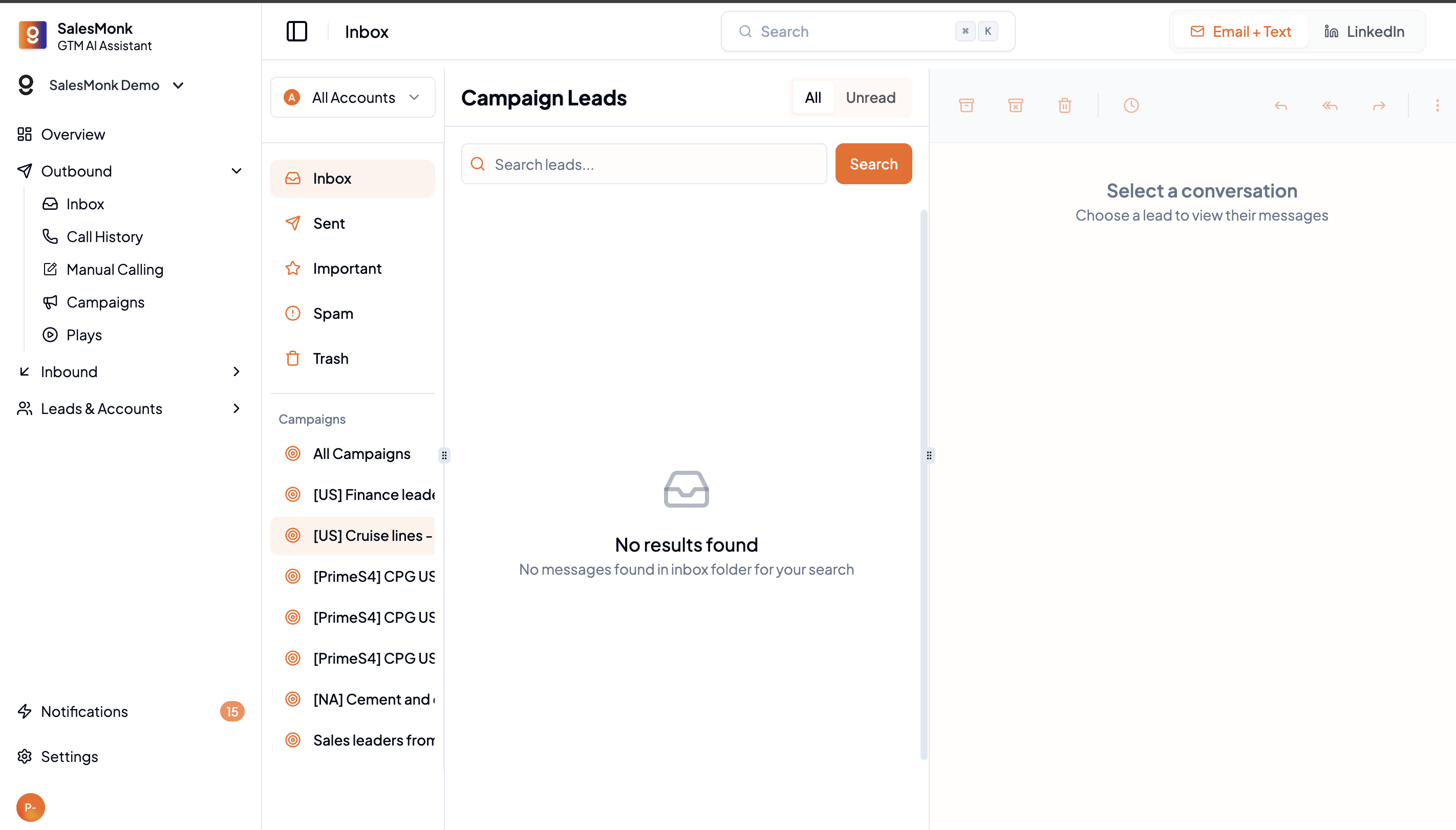
# Inbox & Deliverability
SalesMonk provides a unified inbox across:
* Email
* LinkedIn
The platform also manages:
* Inbox warmup
* Rate limiting
* Bounce protection
* LinkedIn safety limits
This allows teams to focus on conversations, not infrastructure.
# Overview
AI Voice Agents extend SalesMonk beyond text-based GTM into real-time voice interactions.
They are used primarily for:
* Inbound qualification
* Callback workflows
* Meeting booking
# Website Voice Agent
The website voice agent:
* Engages visitors conversationally
* Answers product questions
* Books meetings directly
It:
* Understands product knowledge
* Personalizes responses using visitor context
* Operates without requiring form fills
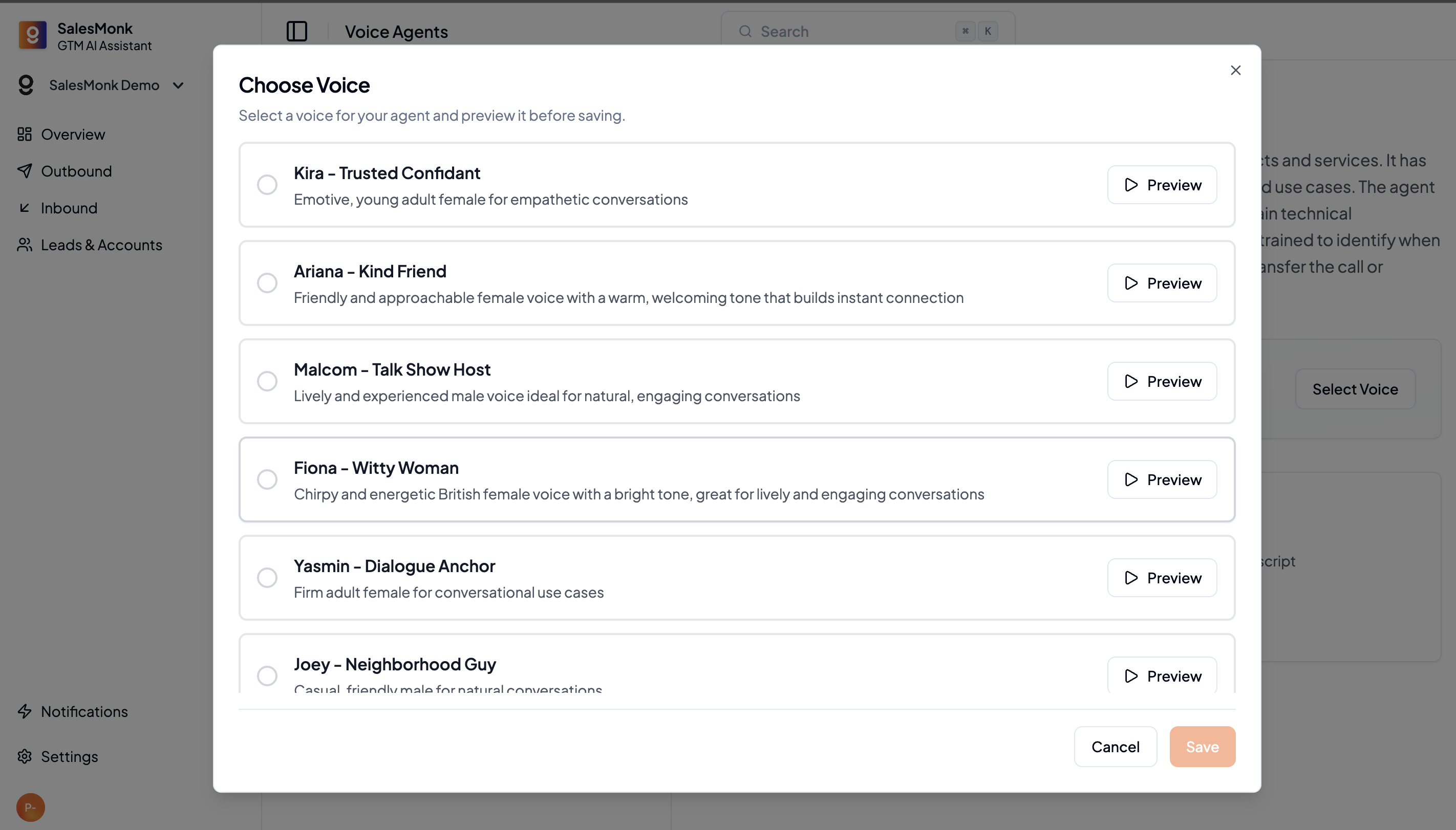
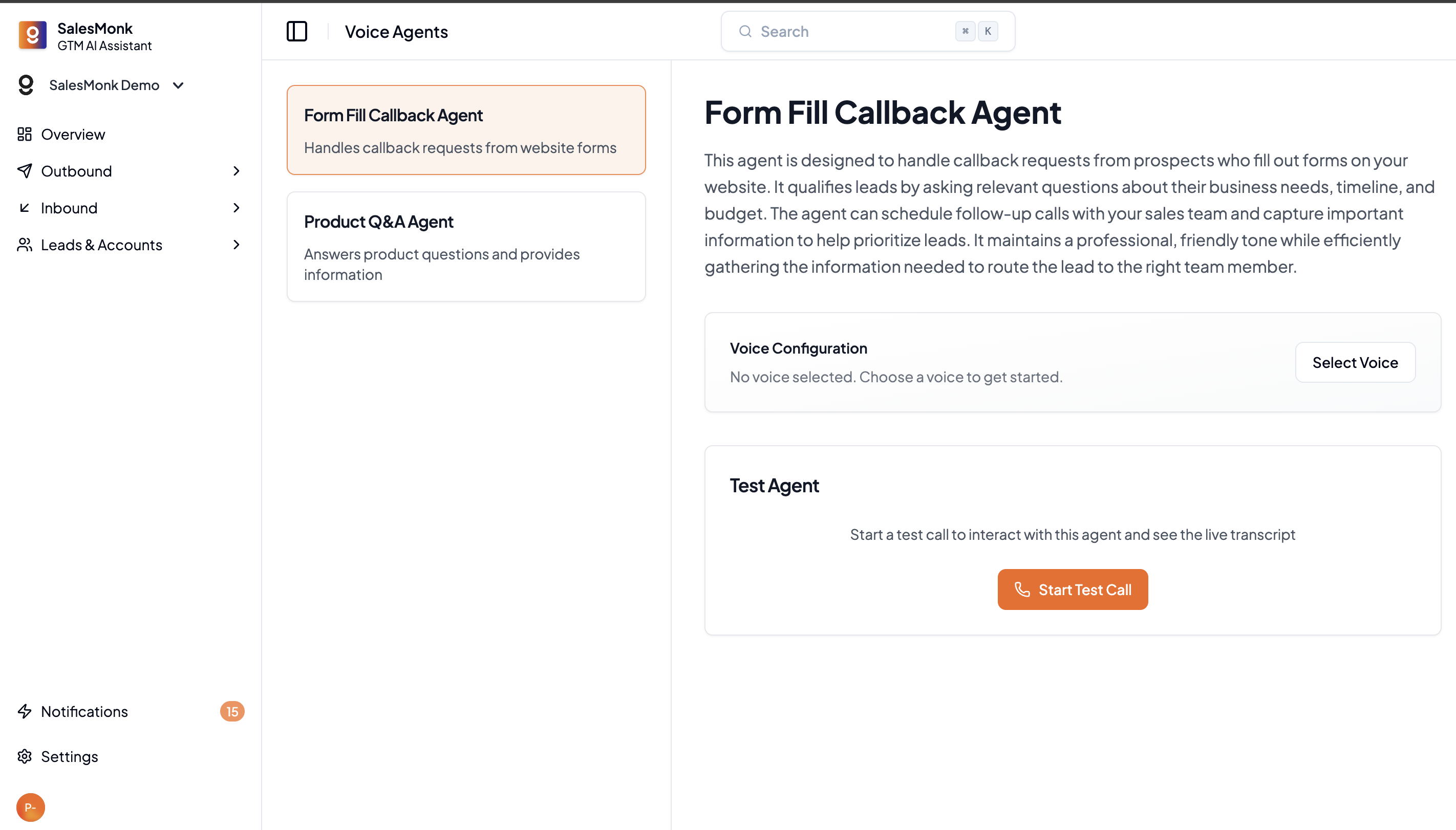
# Form-Fill Callback Agent
For high-volume inbound:
* The callback agent triggers after form submission
* Calls the prospect immediately
* Asks qualification questions
* Summarizes the conversation
Outputs include:
* Call recording
* Transcript
* Sentiment analysis
* CRM sync
# AI vs Human Calling
SalesMonk supports:
* Human calling workflows
* AI-assisted calling (where legally permitted)
Outbound AI calls are handled carefully due to regulatory and cultural constraints, especially in the US.
# What Are Plays
Plays are automation workflows that define:
“When X happens, do Y”
They are central to SalesMonk’s automation-first GTM philosophy.
# Play Triggers
Plays can trigger when:
* A lead enters a segment
* An account shows intent
* A visitor hits a specific page
* A signal changes state
# Play Actions
Actions include:
* Adding leads to campaigns
* Prospecting new contacts
* Triggering voice calls
* Syncing data to CRM
* Pushing data to Sheets
* Sending notifications
# Why Plays Matter
Plays eliminate manual GTM work by:
* Acting faster than humans
* Ensuring consistency
* Scaling best practices
They turn intent into execution automatically.
# Account Scoring Philosophy
SalesMonk uses explicit, configurable scoring, not black-box AI scores.
This ensures:
* Transparency
* Trust
* Customization per client
***
### Fit Criteria
Fit criteria measure:
* Industry
* Company size
* Geography
* Firmographics
These are relatively static.
***
### Behavior Criteria
Behavior criteria measure:
* Website activity
* Page visits
* Engagement trends
* Signal changes
These are dynamic and recalculated regularly.
***
### Intent Trends
SalesMonk tracks:
* Intent level
* Intent direction (rising / falling)
* Rolling 30-day trends
This allows teams to:
* Prioritize timing
* Focus on momentum
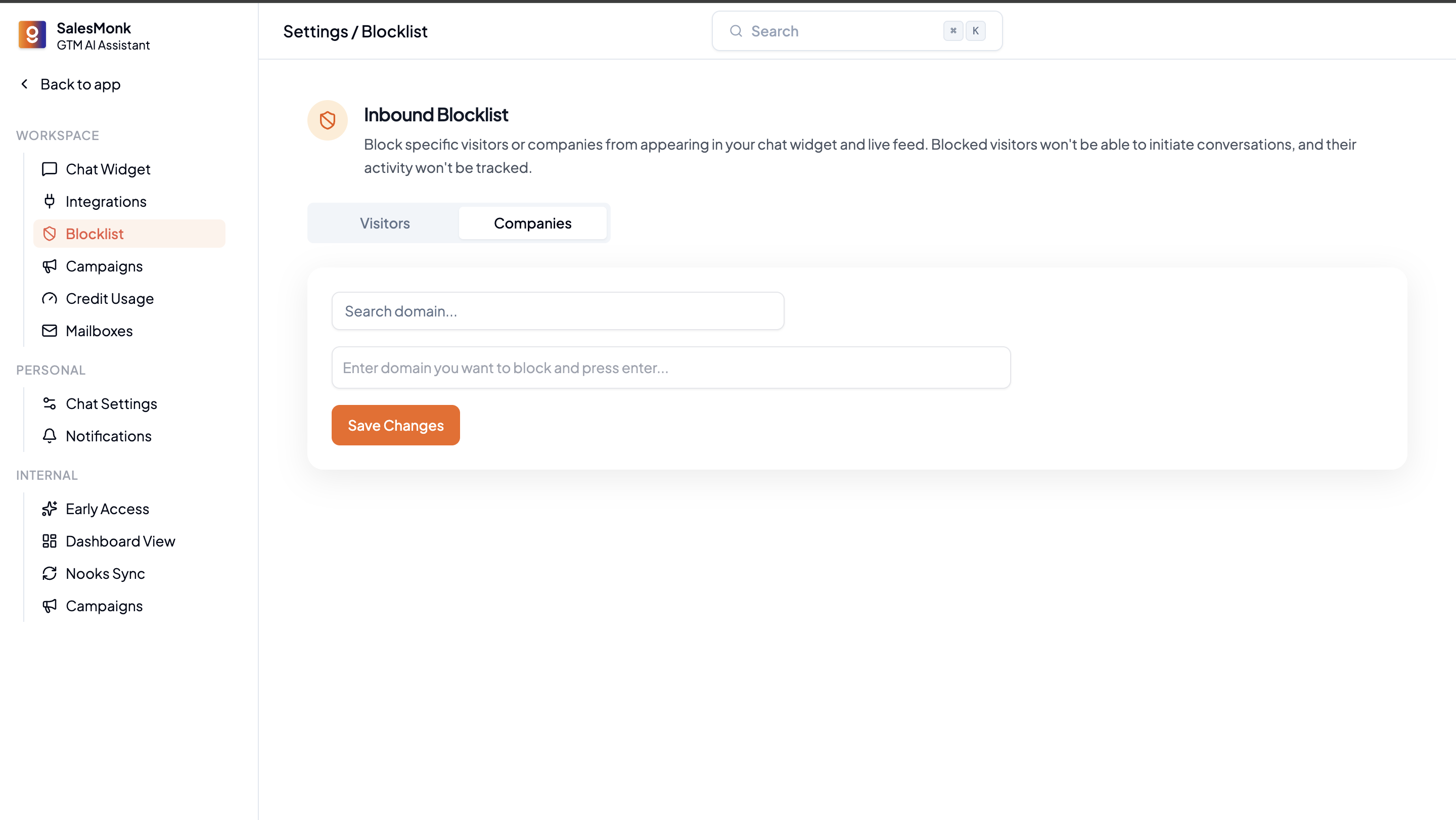
# Block Lists
Inbound block lists prevent:
* Repeated spam
* Irrelevant visitors
* Noisy traffic
Outbound DNC lists ensure:
* Compliance
* Respect for existing relationships
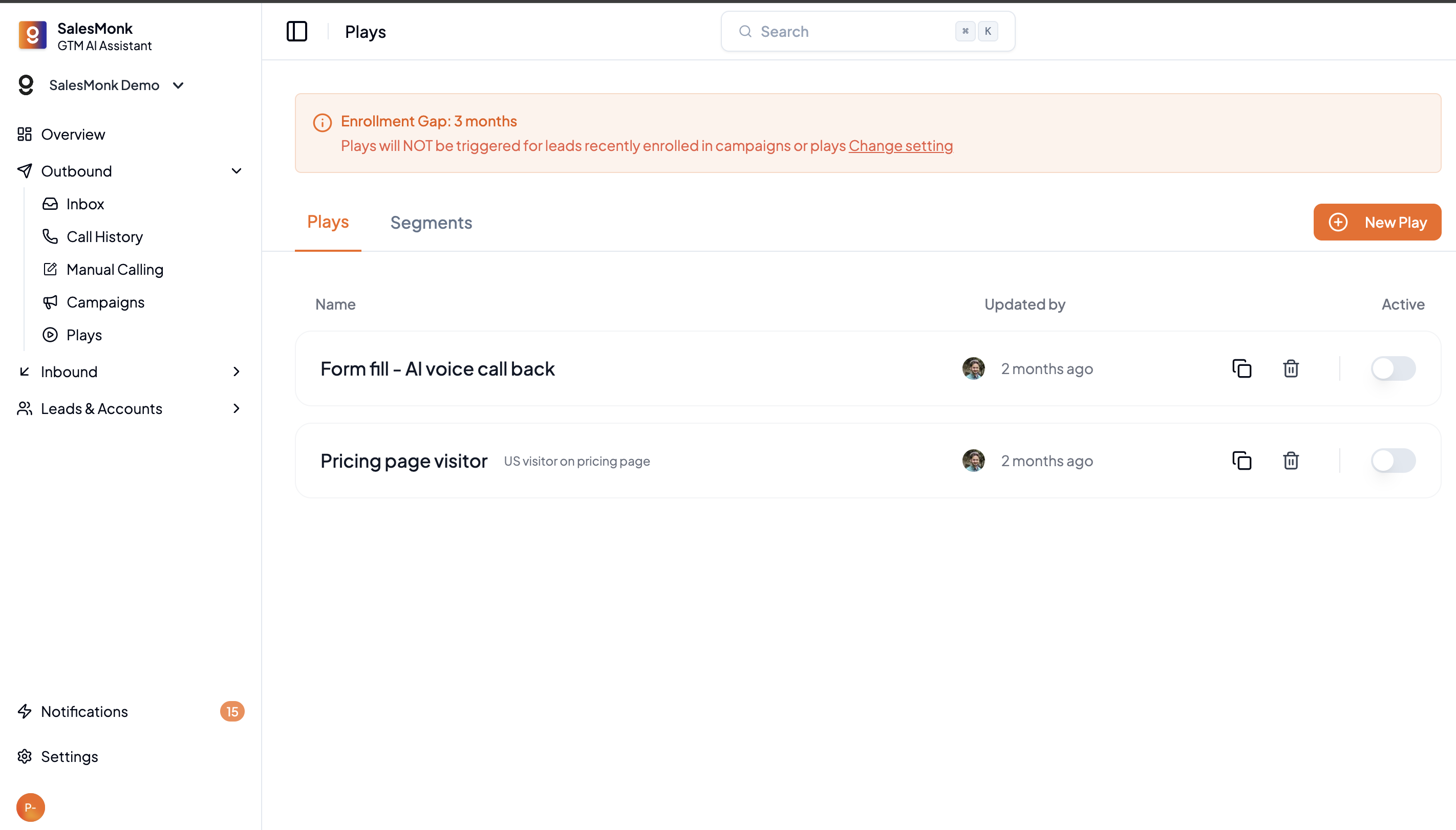
# Enrollment Gaps
Enrollment gaps prevent:
* Over-messaging
* Repeated outreach to the same accounts
These rules protect brand reputation.
# Workspace Model
Each workspace represents:
* One company
* One shared GTM dataset
All users within a workspace:
* See the same leads
* Share segments and campaigns
* Operate from a single source of truth
# Multi-User Support
Workspaces support:
* Multiple users
* Multiple inboxes
* Multiple calendars
Permissions are currently shared, with future flexibility planned.
# Outcome-First Metrics
### SalesMonk prioritizes:
* Qualified meetings
* Positive conversations
* Pipeline influenced
* Meetings per 1,000 visitors
### Why Meetings per 1,000 Visitors:
Traffic fluctuates.\
Absolute counts lie.
This metric normalizes performance and reveals:
* Real GTM efficiency
* Trend direction
* Optimization impact
### Unified Reporting:
Metrics are aggregated across:
* Inbound
* Outbound
* Voice
* Automation
This gives leadership a single GTM scoreboard.
# Adding the chat widget to your website
{% hint style="info" %}
A frontend web developer will need to complete these steps
{% endhint %}
{% hint style="warning" %}
It's strongly recommended to not use Google Tag Manager (GTM) to load our snippet as this is susceptible to being blocked by ad blockers and leads to slower widget loads.
{% endhint %}
1. Copy the snippet from our dashboard under Settings > Chat Agent
2. Insert the snippet inside the `head` tag on all pages of the website. This is usually done via a common `Header` component. Our script loads with the `defer` attribute so that it doesn't slow down any page loads.
# JavaScript Events
RevenueHero JavaScript events are sent from the scheduler at different stages. Learn about those events that can be used to trigger downstream activities.
The **SaaSMonk Chat Widget** tracks and emits the following JavaScript events through the lifecycle of the chat experience. These can be captured using a sample message listener like the following to be used for actions like sending event to Google Analytics, Pixel, etc.
```javascript
window.addEventListener("message", (ev) => {
if (ev.data.type == "MEETING_BOOKED") {
// Send to Google Analytics
dataLayer.push({ event: "meeting_booked" });
// Send to pixel
fbq("track", "RevenueHero", { event: "meeting_booked" });
}
});
```
### MEETING\_BOOKED
The event is sent when a meeting is booked successfully through a calendar integrated within our widget
```json
{
"type": "MEETING_BOOKED",
"meeting": {
"id": "1234",
"attributes": {
"booker_name": "John Smith",
"booker_email": "john.smith@acme.com",
"phone_number": "+11234567890",
"booker_company_name": "Acme, Inc",
"country_code": "US",
"calendar_type": "calendly",
"meeting_time": "2023-11-24T05:30:00.000Z",
"created_at": "2023-11-24T05:30:00.000Z",
"booking_guests": ["jackie@acme.com"],
"booked_with_name": "Jane Doe",
"booked_with_email": "jane@abc.com"
}
}
}
```
# Adding Allowlist URLs
You can create allowlist URL patterns for which the chat widget will be visible.
To add allowlist URL patterns, go to the **Settings** page and click on the **Chat Agent** tab. Then go to the **Widget Visibility** section and select **Allowlist** from the dropdown menu. You can then enter the URL patterns you want to allow and then click on the **Apply** button to save the changes.
### **Example**
#### **Wildcard URLs**
Let's say you want to allow URLs that start with `https://www.example.com/allowed` and its wildcard version `https://www.example.com/allowed/*`. You can do this by entering the following in the **Allowlist** field:
```
https://www.example.com/allowed(/*)
```
This will allow SalesMonk to track URLs that start with `https://www.example.com/allowed` and its wildcard version `https://www.example.com/allowed/*`.
#### **Particular URL**
If you want to allow a particular URL, you can do this by entering the URL in the **Allowlist** field. For example, if you want to allow `https://www.example.com/allowed`, you can enter the following in the **Allowlist** field:
```
https://www.example.com/allowed
```
This will allow SalesMonk to track the URL `https://www.example.com/allowed`.
#### **Add all url in wildcard except specific link segment**
If you want to add all URL in wildcard except particular link, you can do this by entering the URL in the **Allowlist** field. For example, if you want to allow `https://www.example.com/allowed/*` except particular link `https://www.example.com/allowed/specific-link`, you can enter the following in the **Allowlist** field:
```
https://www.example.com/allowed(/(?!specific-link)*)
```
# Basic setup
This section covers all the setup you should do before you start talking to visitors.
{% hint style="warning" %}
It's highly recommended to do all these steps to ensure that your visitors want to talk to you!
{% endhint %}
## Enabling visitor chat
Settings > Chat Settings
On [this page](https://app.saasmonk.ai/settings) within your dashboard, make sure you -
1. **Turn on user visibility**: if you ever intend on chatting with visitors via Slack or the dashboard, this needs to be on! This ensures your profile image shows up publicly.
2. **Set a default chat greeting**: you can update the default greeting that gets sent through the "Greet Visitor 👋" button on Slack. *Tip: make it as non-robotic as you can for more engagement*
3. **Set a message for your bio**: this can just be your job role, or something to put a smile on your visitor's face :wink:
## Updating your profile picture
Your profile picture will be visible in the chat widget to your website visitors. Putting a face to your name really helps in their confidence of you being a real person!
{% hint style="info" %}
Be sure to upload an image that shows your face prominently
{% endhint %}
{% embed url="" %}
# Identify individuals clicking on outbound emails
Identifying accounts on your site not enough? SalesMonk can help you identify individuals clicking on your email sequences too!
By utilizing our UTM parameter in outbound emails and sequences with links taking prospects back to your website, you’ll receive individual-level identification data about your website visitors. The UTM is simple to set up, and including them in all email links taking prospects back to your website will help your team get a ton of identified visitors each week!
### Setup for HubSpot
You will need to add in the following at the end of your link
**If you have no other UTM parameters:**
`?s_email={{contact.email}}`
Adding s_email UTM with no existing UTM params
Before: [https://www.salesmonk.ai](https://www.salesmonk.ai/?s_email={{contact.email}})
After: [https://www.salesmonk.ai?s\_email={{contact.email}}](https://www.salesmonk.ai/?s_email={{contact.email}})
***
**If you have other UTM params in link, add this in at the end:**
`&s_email={{contact.email}}`
Adding s_email UTM with an existing UTM params
Before: [https://www.salesmonk.ai/about-us/company?utm\_campaign=onboarding](https://www.salesmonk.ai/about-us/company?utm_campaign=onboarding\&s_email={{contact.email}})
After:
### Setup for Outreach, Ample, Salesloft and Apollo
The setup for these will be almost exactly the same as above, except for one detail. The text you would add in to your links would be as follows:
No other UTM params: `?s_email={{email}}`
With other UTM params, add at the end: `&s_email={{email}}`
# Calendars
# Calendly
This guide covers the steps to adding a single Calendly calendar link. If you'd like to route to different event types based on some form inputs from the visitor, you can embed a [Calendly Routing Form](https://calendly.com/features/routing) following the same general steps below.
### Personal Access Token
A token is needed to capture the name and email booked from the Calendly widget into our system.
{% embed url="" %}
Follow the steps here to generate one within Calendly:
* Go to the [Integrations Page](https://calendly.com/integrations)
* Select the [API & Webhooks tile](https://calendly.com/integrations/api_webhooks)
* If you have no prior personal access tokens, select Get a token now under Personal Access Tokens.
* If you already have a token, select Generate new token under Your personal access tokens.
* At Create your personal access token, create an identifiable name for your token and select Create Token, then Copy token.
### Embed Snippet
{% embed url="" %}
Once you have the token, follow the steps provided in the video and add it to [Salesmonk Dashboard](https://app.salesmonk.ai/settings?tab=link-calendar).
# Hubspot
Guide coming soon!
# RevenueHero Campaign router
We support Campaign routers from RevenueHero being embedded right in our chat widget.
{% embed url="" %}
# RevenueHero Inbound Router
You can use RevenueHero's Inbound Router (https\://help.revenuehero.io/routers/inbound/create-inbound-router) in case you'd like to use advanced routing capabilities.
{% hint style="warning" %}
This integration takes a little longer to set up than the campaign router.
We would need to know the exact fields to be captured for the router, and any updates to be made to the router need to be communicated to our support team beforehand to ensure that the meeting booking process doesn't break.
{% endhint %}
### Inbound Router Setup
1. Create a custom form
The form fields need to be mapped exactly like the following:
`first_name`
`last_name`
`full_name`
`email`
`business_email`
`country`
`company_name`
`phone_number`
Router ID is unimportant, can add in an arbitrary value like 123 here.
2. Create a new inbound router. Use the custom form created above. Go add values in steps 1-5 as needed.
3. In the final step, add in the "meeting not booked URL" and "disqualified URL" values from our dashboard, under Settings > Link Calendar > Revenue Hero Inbound Router. Create the new router.
4. After creating the new router, copy over the new router ID to our dashboard and save.
# Slack
# How to connect?
To connect Slack in SalesMonk, follow these steps:
1. Log in to your SalesMonk account.
**NOTE: Please ensure that your login email is same as your slack account email**
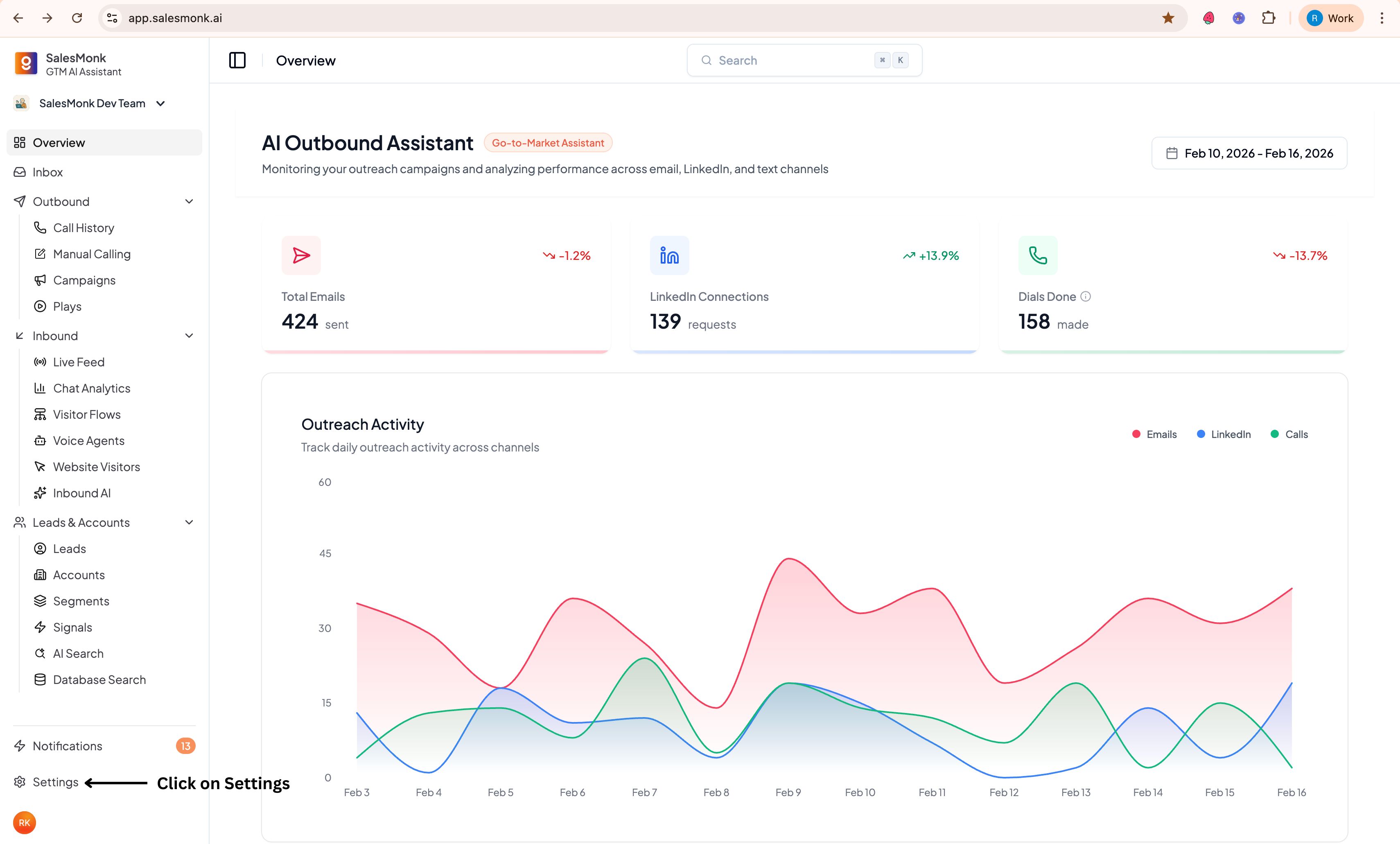
2. Click on the **Settings** icon in the bottom left
3. Navigate to **Integrations** tab and click on **Add to Slack button**
4. Select the Slack workspace you want to connect and click on **Allow**.
5. Once the connection is established, you will be redirected to the settings page and see a **Connected** status in the **Slack Integration** section
6. Select the channel in which you want to receive the notifications and click the **Set Channel** button to set the channel.
#### Private Channel Setup (optional)
1. To setup private channel, add the SalesMonk app by mentioning it in the private channel you want to add in and click on **Invite Them** button.
2. Once the app joins the channel, it will be available in the dropdown in the SalesMonk dashboard. Select the channel from the dropdown and set the channel.
🎉 That's it! You have successfully connected Slack in SalesMonk and can now enjoy seamless communication and collaboration between the two platforms.
# How to use?
Please ensure that your slack email is same as the one you used to login into SalesMonk dashboard
* You can directly send the message to the visitor by clicking on the `Greet Visitor` button or by replying to the thread.
* If you receive a green tick :white\_check\_mark: on the message, it means that the visitor has received your message.
* If you receive a cross mark :x: on the message, it means that the message was not delivered to the visitor. Possible reasons could be:
* You're not the assigned agent for the visitor as only one agent can chat with the visitor.
* You're not registered on the SalesMonk dashboard. Please connect with your admin to get yourself added on the dashboard.
NOTE: If you don't receive any reaction on your message after sending the message, please contact SalesMonk support immediately.
# SalesForce CRM
SaaSMonk has a bi-directional Salesforce sync to make sure that Salesforce stays as your source of truth.
## Integrating Salesforce with SalesMonk
To create the Salesforce CRM integration, you need to be a Salesforce Administrator. As connected apps receive tokens on behalf of the client after authorization.
{% hint style="info" %}
Our approach to making sure that this integration is successful is iterative. We recommend you start with reads, and consult with our support team on enabling specific writes since the needs for these vary vastly from company to company.
{% endhint %}
## Reading data from Salesforce to SalesMonk
SalesMonk reads customer CRM data in order to populate additional fields within our platform with relevant CRM information. It also enables our customers to:
* Create segmenting based off of CRM data - needed in scenarios where you want your reps to be notified when an account that they own comes to your website
* Filter out your current customers in so that you're only messaging true prospects.
* See the data surfaced in all the relevant places - Slack, in the visitor and company detail pages, and so on.
We currently show the following CRM fields inside SalesMonk dashboards and Slack notifications:
* Account
* Name
* Website
* \# of contacts
* Owner
* Contact / Lead
* Name
* Email
* Owner
* Opportunity
* Amount
* Close date
* Deal pipeline
* Deal stage
* Last activity
* Owner
## Writing data from SalesMonk to Salesforce
When SalesMonk identifies a company or an individual visiting your website, we will add that company as a Account record in Salesforce and add that individual as a Lead record in Salesforce.
**Please note that writes need to be enabled in consultation with our Support team - we'll make sure that only the right fields and contacts/companies are getting mapped to Salesforce.**
In addition to adding a Company record and/or a Lead record to Salesforce, SalesMonk also writes over a set of custom SalesMonk fields. These essentially serve as a way to get all of SalesMonk's valuable website traffic data into your CRM automatically.
{% hint style="info" %}
We distinguish duplicate records by checking domains for companies and emails for individuals.
{% endhint %}
If we identify a duplicate, we will not create a new Company or Lead record, and instead write over the data from the custom fields to the Company and Contact (or Lead) records.
### Company
SalesMonk adds these fields to the Account object:
1. SalesMonk Created
1. True if this account didn’t exist in your CRM before and SalesMonk created this account
2. SalesMonk: Company
1. URL Link to the account page in SalesMonk, e.g.
### Contact
SalesMonk adds these custom fields to the Contact/Lead object:
1. SalesMonk Created
1. True if this lead didn’t exist in your CRM before and SalesMonk created this lead
2. SalesMonk Contact
1. URL Link to the visitor page in SalesMonk, e.g. [https://app.salesmonk.ai/contact/details/XXXX](https://app.salesmonk.ai/accounts/XXXX)
3. SalesMonk Last Seen
1. Date this visitor was last seen on your website
4. SalesMonk Total sessions
1. Total number of sessions from all devices of this visitor. A new session is started when a visitor comes to your site, and ends when the visitor closes the tab or if they become inactive and stop scrolling/moving/clicking anything on your site for over 30m.
1. E.g. visitor goes to your site, scrolls around, closes tab. 4 hours later, visitor A goes to your site again and clicks around. That’s 2 sessions.
5. SalesMonk UTM Campaign
1. Last utm\_campaign value
6. SalesMonk UTM Content
1. Last utm\_content value
7. SalesMonk UTM Medium
1. Last utm\_medium value
8. SalesMonk UTM Source
1. Last utm\_source value
We also add in the following in the **Activity** **timeline** for the contact/lead:
1. Meetings booked by the contact
We also add in the following in the **Notes** for the contact/lead:
1. Chats initiated by the contact
## Salesforce integration FAQs
**Question**: If a match isn't found in Salesforce, what records are created and what are the default values?(Owner, Status, etc.)
**Answer**:
Creating a Company:
* Company Name
* Company Owner
* Assigned to the Salesforce user who did the Salesforce integration in SaaSMonk
* Website
* All the SalesMonk fields mentioned above
Creating a Lead
* Name
* Email
* Lead Owner
* By default leads are assigned to the Salesforce user who did the Salesforce integration in SalesMonk (can be changed to a different Salesforce user on request)
* All the SalesMonk fields mentioned above
***
**Question:** What's the methodology SalesMonk uses to identify whether a Contact(or Lead)/Company already exists in Salesforce?
**Answer:** We look at the unique identifiers for companies and individuals. These are the domains of the companies and the emails/phone numbers of the people. Note that for companies we match based on just domain of the website field (we strip any “[http://www.”](http://www.xn--ivg/) and any URL paths)
***
**Question:** Will SalesMonk edit any of our CRM fields?
**Answer:** We overwrite the first name and last name with the values provided by a user with an existing contact/lead. Email and phone number changes are also synced to Salesforce . We also edit the custom SalesMonk fields.
***
**Question:** If SalesMonk identifies the account or the contact to be a duplicate, will it still write over the SalesMonk data to the custom fields of the Company record and/or the Contact record?
**Answer:** Yes. If we identify the company or the individual that has visited your website to already be in your Salesforce (as a Contact/Lead), we will not create a new Company record or Lead record. However, we will still write over all of the data into the SalesMonk custom fields for those existing Company records and/or Contact/Lead records. Note, for individuals, we go through contacts first and then leads to determine duplicates.
***
**Question:** At a high level, how can I easily find whether a Company or Lead record was created by SalesMonk?
**Answer:** You’ll see "SalesMonk Created” is “True” if we created the Company or Lead record (for Leads , the LeadSource will be set to SalesMonk by default).
***
**Question:** Is there an option to create customer field mappings for records created by SalesMonk?
**Answer:** This requires a custom integration - please contact our support, we'd be happy to make this happen for you!
# HubSpot CRM
SaaSMonk has a bi-directional Hubspot sync to make sure that Hubspot stays as your source of truth.
{% hint style="info" %}
Our approach to making sure that this integration is successful is iterative. We recommend you start with reads, and consult with our support team on enabling specific writes since the needs for these vary vastly from company to company.
{% endhint %}
## Reading data from HubSpot to SalesMonk
SalesMonk reads customer CRM data in order to populate additional fields within our platform with relevant CRM information. It also enables our customers to:
* Create segmenting based off of CRM data - needed in scenarios where you want your reps to be notified when an account that they own comes to your website
* Filter out your current customers in so that you're only messaging true prospects.
* See the data surfaced in all the relevant places - Slack, in the visitor and company detail pages, and so on.
We currently show the following CRM fields inside SalesMonk dashboards and Slack notifications:
* Company
* Name
* Website
* \# of contacts
* Owner
* Contact
* Name
* Email
* Lifecycle stage
* Owner
* Deal
* Amount
* Close date
* Deal pipeline
* Deal stage
* Last activity
* Owner
## Writing data from SalesMonk to HubSpot
When SalesMonk identifies a company or an individual visiting your website, we will add that company as a Company record in HubSpot and add that individual as a Contact record in HubSpot.
**Please note that writes need to be enabled in consultation with our Support team - we'll make sure that only the right fields and contacts/companies are getting mapped to HubSpot.**
In addition to adding a Company record and/or a Contact record to HubSpot, SalesMonk also writes over a set of custom SalesMonk fields. These essentially serve as a way to get all of SalesMonk's valuable website traffic data into your CRM automatically.
{% hint style="info" %}
We distinguish duplicate records by checking domains for companies and emails for individuals.
{% endhint %}
If we identify a duplicate, we will not create a new Company or Contact record, and instead write over the data from the custom fields to the Company and Contact records.
### Company
SalesMonk adds these fields to the Company object:
1. SalesMonk Created
1. True if this account didn’t exist in your CRM before and SalesMonk created this account
2. SalesMonk: Company
1. URL Link to the account page in SalesMonk, e.g.
3. SalesMonk: Last Seen
1. Date any visitor from this account was last seen on your website
4. SalesMonk: Pages Visited
1. List of URL page paths visitors from this account visited
5. SalesMonk: Segments
1. List of SalesMonk Segments that this account matches
6. SalesMonk: Total active time
1. Total active seconds spent on your website of all visitors from this account. Active means the visitor was moving their mouse, scrolling, clicking. Does not include time where the visitor just leaves the tab open in the background
7. SalesMonk: Total pages viewed
1. Total number of page views (non-unique) from all visitors from this account.
1. E.g. if visitor A views /pricing, clicks /home, clicks /pricing, that’s 3 pages viewed.
8. SalesMonk: Total sessions
1. Total number of sessions from all visitors from this account. A new session is started when a visitor comes to your site, and ends when the visitor closes the tab or if they become inactive and stop scrolling/moving/clicking anything on your site for over 30m.
1. E.g. visitor A goes to your site, scrolls around, closes tab. 4 hours later, visitor A goes to your site again and clicks around. That’s 2 sessions.
9. SalesMonk: UTM Campaigns
1. List of all utm\_campaign values from any visitors from this account
10. SalesMonk: UTM Contents
1. List of all utm\_content values from any visitors from this account
11. SalesMonk: UTM Mediums
1. List of all utm\_medium values from any visitors from this account
12. SalesMonk: UTM Sources
1. List of all utm\_source values from any visitors from this account
13. SalesMonk: Visitor count
1. Number of unique website visitors from this account
### Contact
SalesMonk adds these custom fields to the Contact object:
1. SalesMonk Created
1. True if this lead didn’t exist in your CRM before and SalesMonk created this lead
2. SalesMonk Contact
1. URL Link to the visitor page in SalesMonk, e.g. [https://app.saasmonk.ai/contact/details/XXXX](https://app.saasmonk.ai/account/XXXX)
3. SalesMonk Last Seen
1. Date this visitor was last seen on your website
4. SalesMonk Total sessions
1. Total number of sessions from all devices of this visitor. A new session is started when a visitor comes to your site, and ends when the visitor closes the tab or if they become inactive and stop scrolling/moving/clicking anything on your site for over 30m.
1. E.g. visitor goes to your site, scrolls around, closes tab. 4 hours later, visitor A goes to your site again and clicks around. That’s 2 sessions.
5. SalesMonk UTM Campaign
1. Last utm\_campaign value
6. SalesMonk UTM Content
1. Last utm\_content value
7. SalesMonk UTM Medium
1. Last utm\_medium value
8. SalesMonk UTM Source
1. Last utm\_source value
We also add in the following in the **Activity** **timeline** for the contact:
1. Chats initiated by the contact
2. Meetings booked by the contact
### Deal
SalesMonk adds these fields to the Deal object:
1. SalesMonk Created Account
1. True, if the Account associated with this Opportunity is "SalesMonk Created: True"
## HubSpot integration FAQs
**Question**: If a match isn't found in HubSpot, what records are created and what are the default values?(Owner, Status, etc.)
**Answer**:
Creating a Company:
* Company Name
* Company Owner
* Assigned to the HubSpot user who did the HubSpot integration in SalesMonk
* Website
* All the SalesMonk fields mentioned above
Creating a Contact
* Name
* Email
* Contact Owner
* Assigned to the HubSpot user who did the HubSpot integration in SalesMonk
* All the SalesMonk fields mentioned above
***
**Question:** What's the methodology SalesMonk uses to identify whether a Contact/Company already exists in HubSpot?
**Answer:** We look at the unique identifiers for companies and individuals. These are the domains of the companies and the emails of the people. Note that for companies we match based on just domain of the website field (we strip any “[http://www.”](http://www.xn--ivg/) and any URL paths)
***
**Question:** Will SalesMonk edit any of our CRM fields?
**Answer:** No. We only write to the customer SalesMonk fields.
***
**Question:** If SalesMonk identifies the account or the contact to be a duplicate, will it still write over the SalesMonk data to the custom fields of the Company record and/or the Contact record?
**Answer:** Yes. If we identify the company or the individual that has visited your website to already be in your HubSpot, we will not create a new Company record or Contact record. However, we will still write over all of the data into the SalesMonk custom fields for those existing Company records and/or Contact records.
***
**Question:** At a high level, how can I easily find whether a Company or Contact record was created by SalesMonk?
**Answer:** You’ll see "SalesMonk Created” is “True” if we created the Company or Contact record.
***
**Question:** Is there an option to create customer field mappings for records created by SalesMonk?
**Answer:** This requires a custom integration - please contact our support, we'd be happy to make this happen for you!
# How to connect HubSpot?
### **Prerequisites**
Before connecting HubSpot:
* You must have Admin access in HubSpot
* You must have permission to install apps
* You must be logged into the correct HubSpot account
### How to Connect HubSpot
#### Step 1: Go to Integrations
1. Log in to SalesMonk.
2. Click **Settings** from the left sidebar.
3. Click **Integrations** under Workspace.
4. Locate **HubSpot**.
5. Click **Connect**.
#### Step 2: Continue Secure Authentication
SalesMonk uses a secure authentication flow.
1. Click **Continue** on the authentication screen.
2. Select **HubSpot** as the integration provider.
#### Step 3: Grant Required Permissions
SalesMonk will request access to:
* Read and write Contacts
* Read and write Companies
* Read and write Deals
* Read Owners and Users
* Access CRM schema data
Click **Connect** to grant access.
#### Step 4: Choose HubSpot Account
1. Select the **HubSpot** account you want to connect.
2. Click **Choose Account.**
#### Step 5: Confirm Connection in HubSpot
HubSpot may show a notice indicating the app has not been reviewed by HubSpot.
To proceed:
1. Check the **acknowledgment box**.
2. Click **Connect app**.
After successful authentication, the integration status will show as **Connected**.
# Style options
Here are the various style options available to show for your Visitor flows:
### Minimal
### Duo tone
### Bold
### White
# Merge tags
Merge tags are used to substitute dynamic values in messages. They can be used within the editor for Visitor Flows.
### Available tags
```
big_picture_industry
big_picture_industry_group
clearbit_industry
clearbit_industry_group
clearbit_sub_industry
country
utm_source
company_name
```
### Usage
Use the following syntax:
`{{ country | "Earth" }}`
# Opening vs Follow-Up Messages (Legacy Feature)
**Follow-Up Messages (Legacy)**
**Deprecated Feature**
**Follow-Up Messages are no longer actively supported.**
**Please use Opening Messages instead.**
**Refer to the Opening Messages documentation.**
While setting visitor flows, each flow must be either an "opening message" or a "Follow-up message". These options can be found in the Message type section, within the visitor flow
Opening messages - Only a single opening message gets triggered for a given page in a single session.
Follow-up messages - For a given page in a given session, any message that needs to be triggered after the "one and only opening message" needs to be set as a Follow-up message.
Follow-up messages become useful while setting flows for visitors based on their in-page activities. Follow-up messages have to be lower in the priority of visitor flows.
Example -
Here are visitor flows set for first-time visitors, repeat visitors, and visitors who have clicked on the outbound tab of the homepage -
This ensures that only the "First-time visitor" or "Repeat Visitor" flow gets triggered at once and the "Outbound Click" flow gets triggered regardless of the opening message.







.jpg?alt=media&token=869289d9-98a6-44d9-b608-854e5bd59c1e)
.jpg?alt=media&token=b7f1eda6-bca4-4d2a-bfd7-cfc261519382)
.jpg?alt=media&token=079832c2-2c59-49de-98d9-483a740a6450)
.jpg?alt=media&token=a6a2d797-c7ef-4007-ae17-5fe182067c41)
.jpg?alt=media&token=b52d40d2-47b0-4824-95cc-f80f0323a845)
.jpg?alt=media&token=3479f6d9-3f1b-4f7e-9ac2-d7afab45b839)
.jpg?alt=media&token=4d07ace5-733d-4351-ab3b-551f27f92339)


